The parts of a controller
Most modern controllers share the same layout, even though the button names and symbols differ between brands. In-game tutorials use the names for your platform.
| Part | Where it is | Usually used for |
|---|---|---|
| Left stick | Left thumb | Moving your character |
| Right stick | Right thumb | Moving the camera or aiming |
| Face buttons | Four buttons under the right thumb | Jump, interact, attack, cancel |
| D-pad | Cross-shaped pad under the left thumb | Menus, quick items, map |
| Bumpers | Top edge, above the triggers | Switching items or targets |
| Triggers | Underneath, under the index fingers | Accelerating, aiming and firing |
| Stick clicks | Press a stick straight down | Sprinting, crouching, centering the camera |
Keyboard and mouse basics
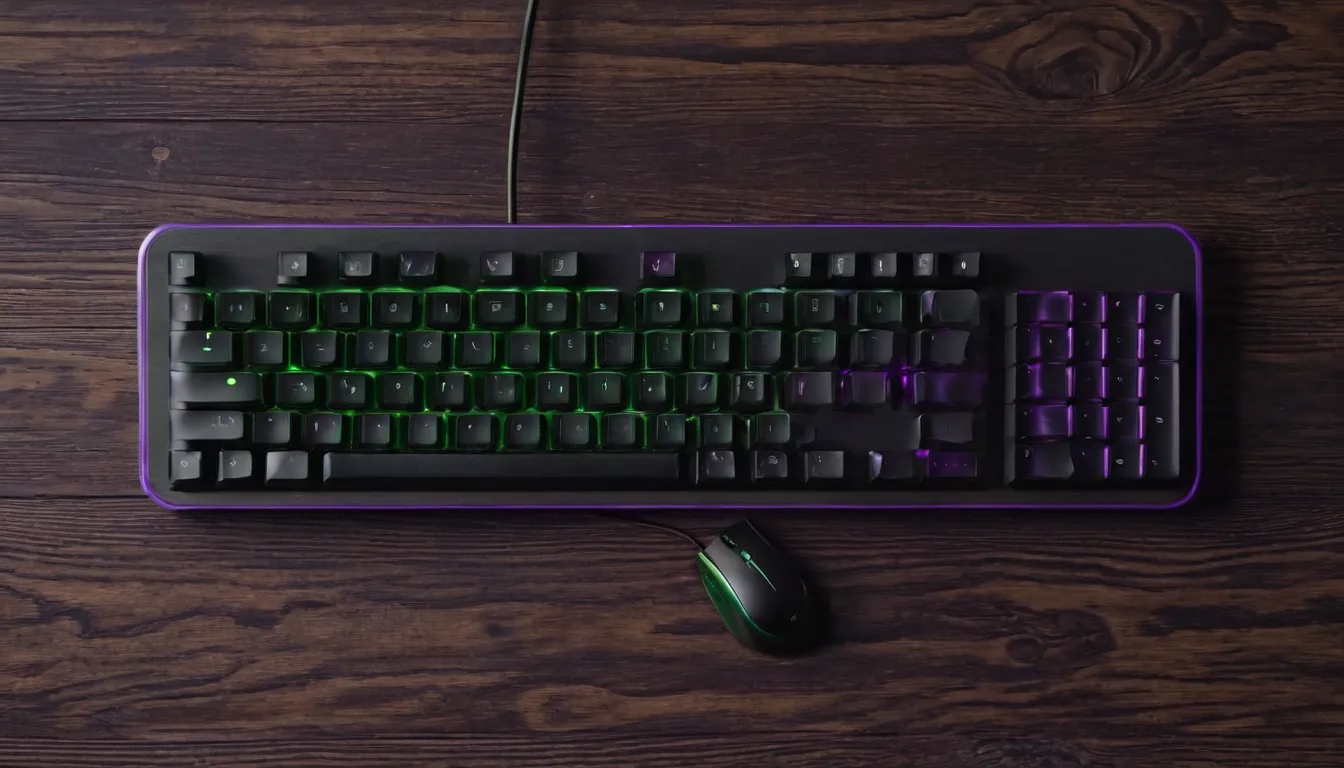
On PC, the left hand usually rests on W, A, S and D, which move you forward, left, back and right. Nearby keys such as Space, Shift, Ctrl, E and Q handle jumping, sprinting, crouching and interacting. The mouse turns the camera and aims, and its buttons fire or use items. Number keys often switch items. If WASD feels awkward, most games let you move movement to the arrow keys or anywhere else.
Camera sensitivity
Sensitivity sets how fast the camera turns when you move the stick or mouse. Beginners often find the default too fast, which makes aiming hard and can cause motion sickness. Lower it a step at a time until you can turn and stop on a target without overshooting. Some games split it into horizontal and vertical sensitivity, and aiming sensitivity for when you zoom in.
Inverted look
Some people expect pushing up on the stick to look up. Others expect it to tilt the view down, like a plane's control stick. Neither is right. If the camera feels backward, look for "invert Y axis" or "invert vertical look" in the controls menu. Some games ask on first launch.
Dead zones and stick drift
A dead zone is a small area around the center of a stick where movement is ignored. It stops the camera creeping when you are not touching anything. If your view slowly drifts on its own, the stick may be worn, and raising the dead zone setting can hide the problem for a while. If drift is bad, check the maker's support pages about repairs.
How to remap buttons
- Try the game's own menu first. Look under Settings, then Controls or Key Bindings. Changes here affect that game only.
- Use system-level remapping for every game. Consoles and PC operating systems often include button remapping in their accessibility menus. These changes apply everywhere, so name or save profiles if your system allows it.
- Change one thing at a time. Play a few minutes after each change so you know what helped.
- Write down your layout. A quick note saves time after an update or on a new device.
Hold or toggle
Many actions, such as sprinting, aiming and crouching, can be set to "hold" (keep the button pressed) or "toggle" (press once to start, again to stop). Toggle is easier on the hands in long sessions. If holding a trigger gets tiring, look for this setting before anything else.
Control questions
Does a game support my controller on PC?
Most PC games list controller support on their store page. Many PC launchers can also translate a controller into keyboard and mouse input for games that lack it.
My hands get tired. What should I change first?
Switch hold actions to toggle, lower vibration strength, and take more frequent breaks. If pain continues, see the posture and hands guide and talk to a doctor or physical therapist.